Proof of delivery: photo and signature
How drivers add a photo and signature at delivery, how to require proof before a delivery is marked done, and where to see and send it.
Updated
On this page
Proof of delivery records every completed delivery: a photo the driver takes, for example when the package is left by the door, and the customer’s signature at handover. It’s saved on the delivery page, and you can send it to the recipient or to the business customer.
Adding a photo and a signature in the app
On the delivery page in the driver app:
- Add Photo: the driver takes a photo, or picks one from the gallery if that’s turned on (see below).
- Add Signature: opens the signature screen. The driver fills in Signee Name (required), the customer signs on the screen, and the driver taps Save. Clear erases the signature so the customer can sign again.
Photos and the signature are saved on the delivery and appear on its page in LionWheel.
Note: a driver can delete a proof-of-delivery photo only on the delivery date.
Requiring proof before a delivery is marked done
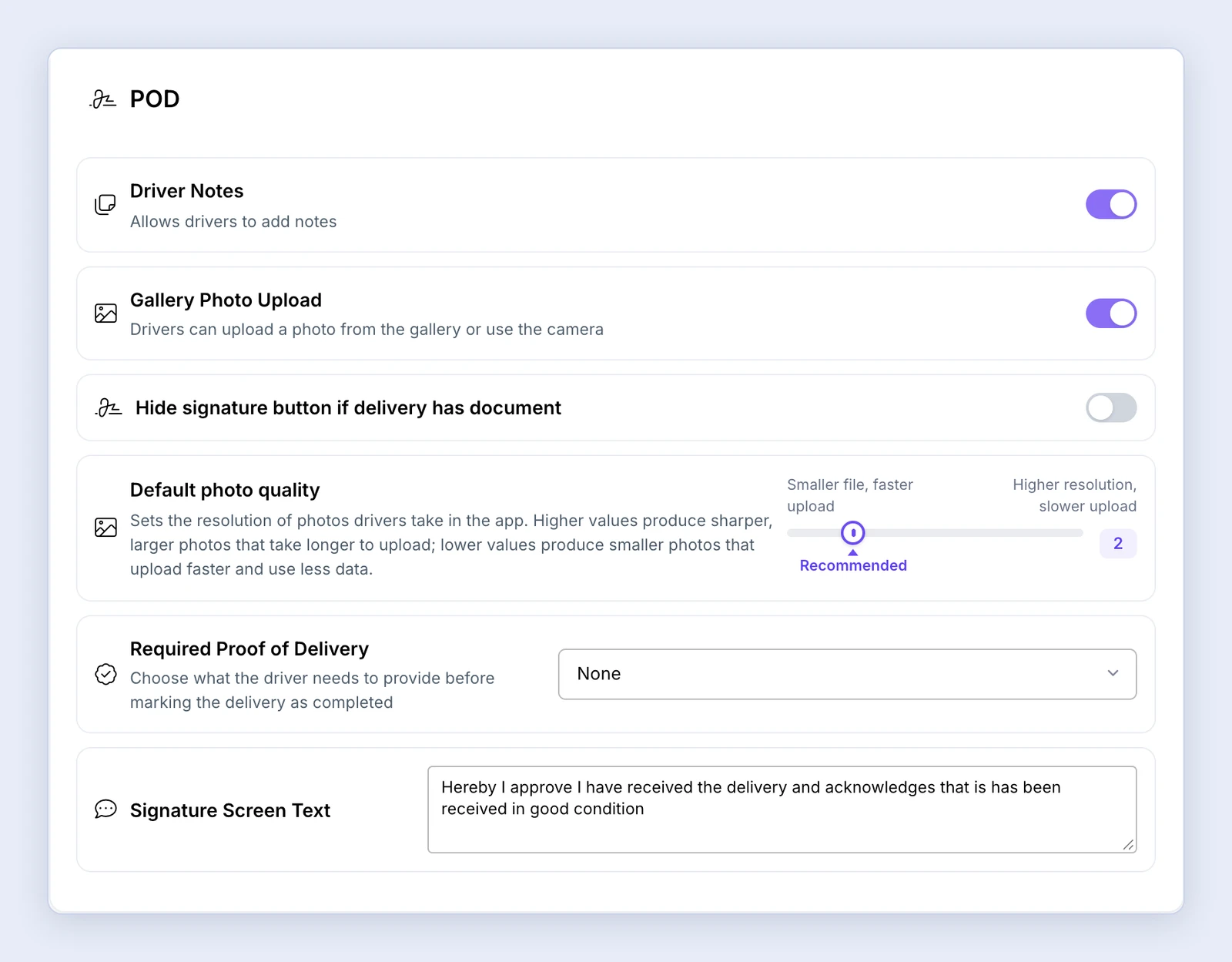
You can stop drivers from marking a delivery as done without proof. Go to Settings => Driver App => POD and set Required Proof of Delivery to one of:
- None: no proof required.
- Signature only: the driver must collect the customer’s signature.
- Photo only: the driver must take a proof-of-delivery photo.
- Photo or signature: either one is enough.
- Photo and signature: the driver must do both.
Until the required proof is added, the Done button in the app is greyed out and can’t be tapped. It becomes available once the driver adds what’s required. The requirement applies to deliveries only, not to pickups or returns.
Other photo and signature settings
In the same section:
- Driver Notes: lets drivers add notes to the delivery.
- Gallery Photo Upload: lets drivers attach an existing photo from the phone as well as take one with the camera.
- Default photo quality: higher values give sharper photos that take longer to upload; lower values give smaller photos that upload faster and use less data.
- Signature Screen Text: the text the customer sees when signing.
- Hide signature button if delivery has document: for deliveries where the customer signs a document (digital document signing guide).
Where to see proof of delivery
Open the delivery in LionWheel and scroll down, past the cards with the delivery, destination and contact details and the map. The Proof of Delivery card is the first card that runs across the full width of the page.
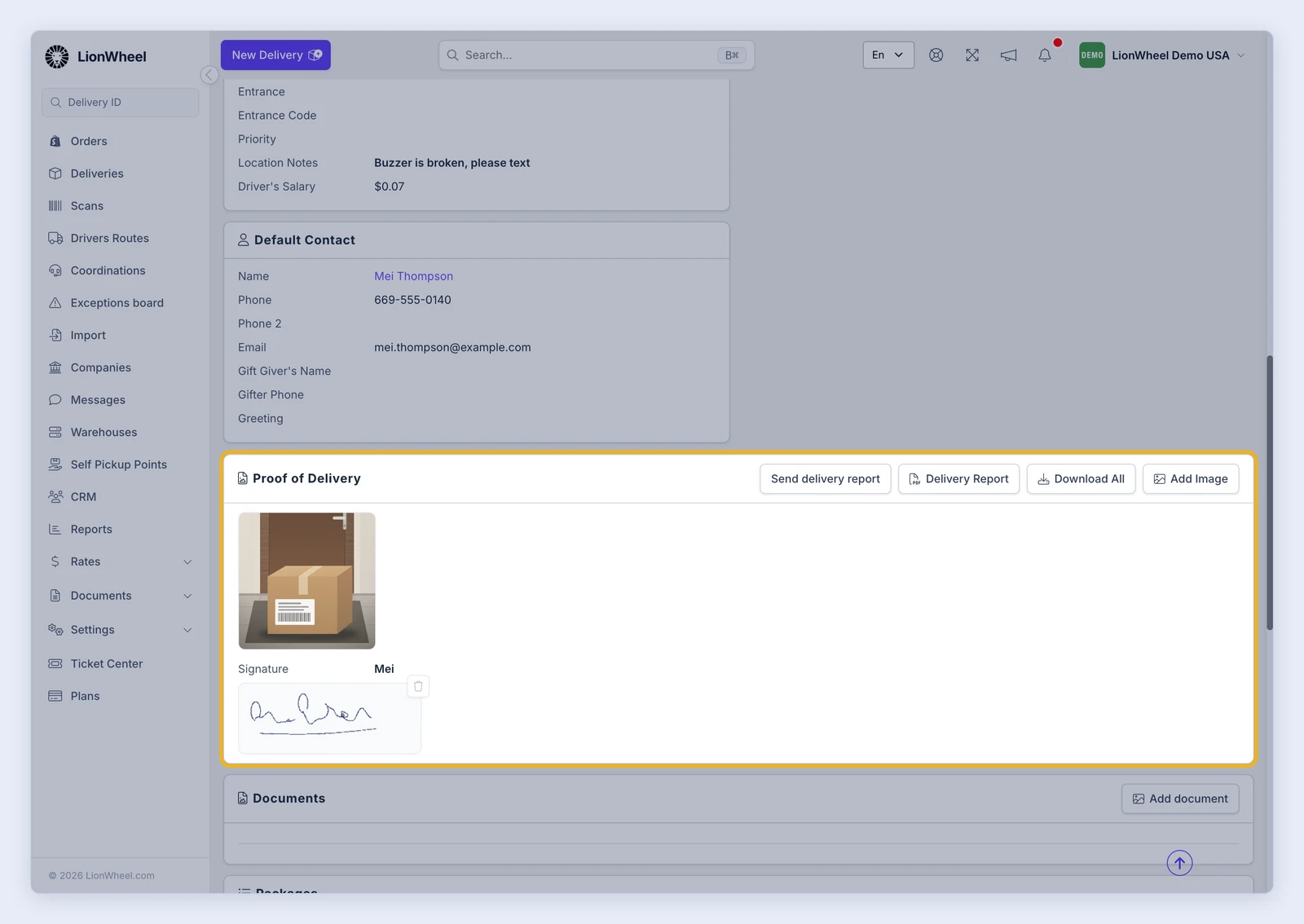
The card shows the photos and the signature. The buttons at its top send the delivery report, open the report, download the photos and add a photo.
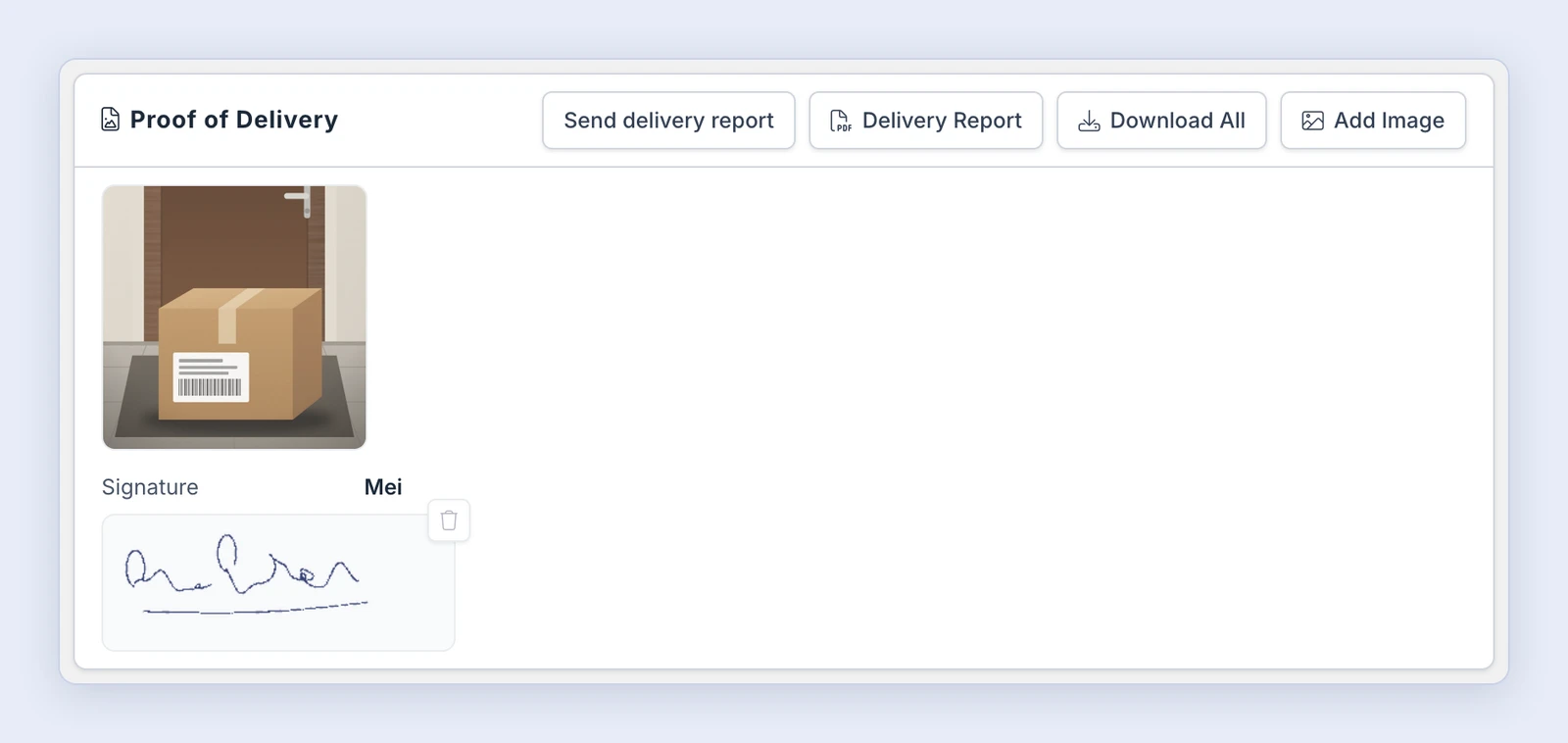
- The photos the driver attached. You can open, rotate, download or delete each one, or download all of them at once with Download All. You can also add a photo yourself from the office with Add Image.
- The signature and the name of the person who signed. You can correct the name if needed.
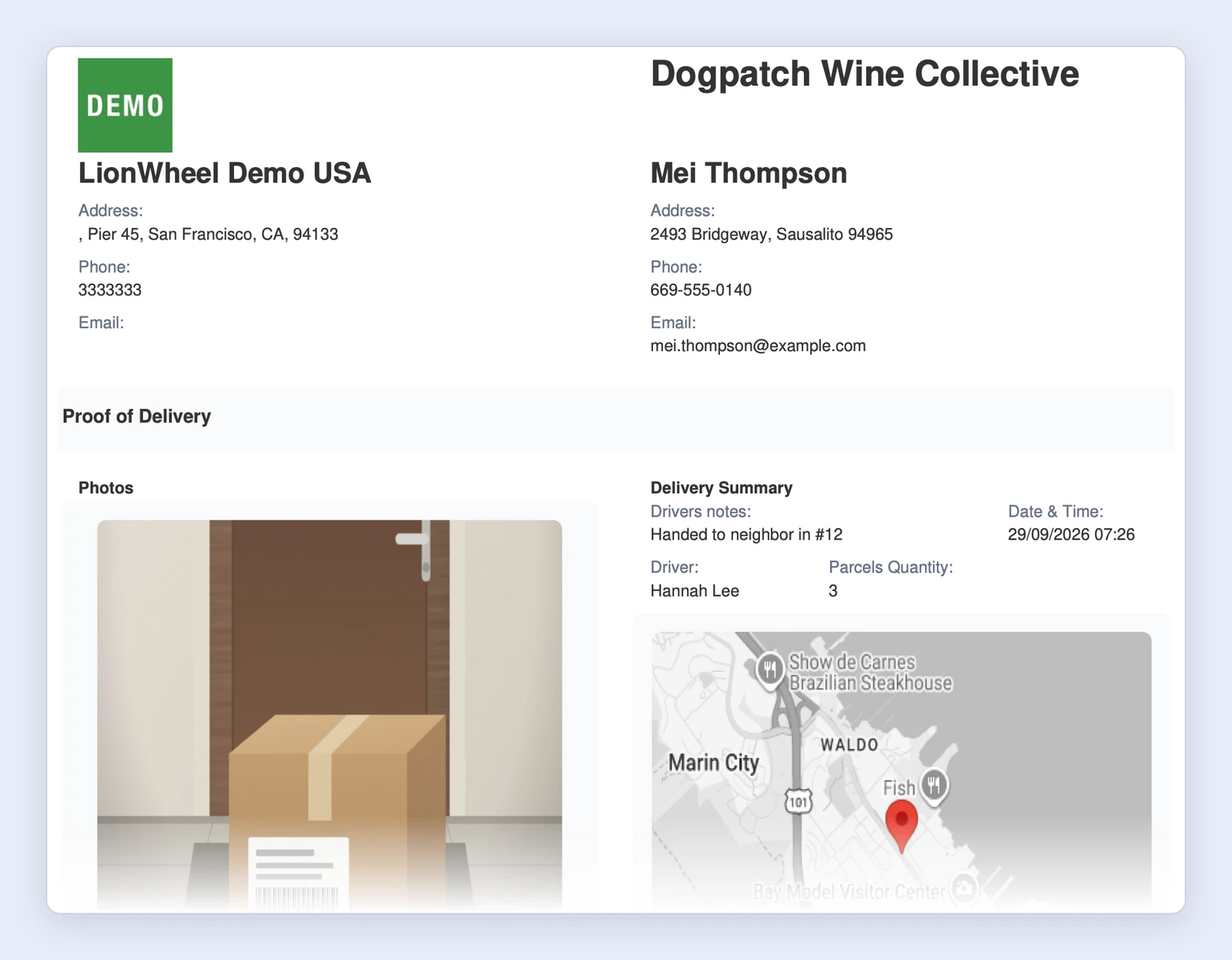
- Delivery Report: a report for the delivery with its details, the proof of delivery and the order items. It opens in a new tab as a PDF.
Here’s what the delivery report looks like. At the top are your business’s details and the recipient’s, followed by the photos, a delivery summary (such as the driver’s notes, the date and time, and the driver) and a map. Further down are the items in the delivery, the signee’s name and the signature.
Sending proof of delivery to the customer
Sending it yourself
On the delivery page, in the Proof of Delivery card, click Send delivery report and choose a text message or email. The contact details are filled in for you: for a business customer’s delivery, the business customer’s email and phone; otherwise, the recipient’s. You can change them before sending. Sending by text message is available when your SMS package is active.
Sending it automatically when the driver adds a photo
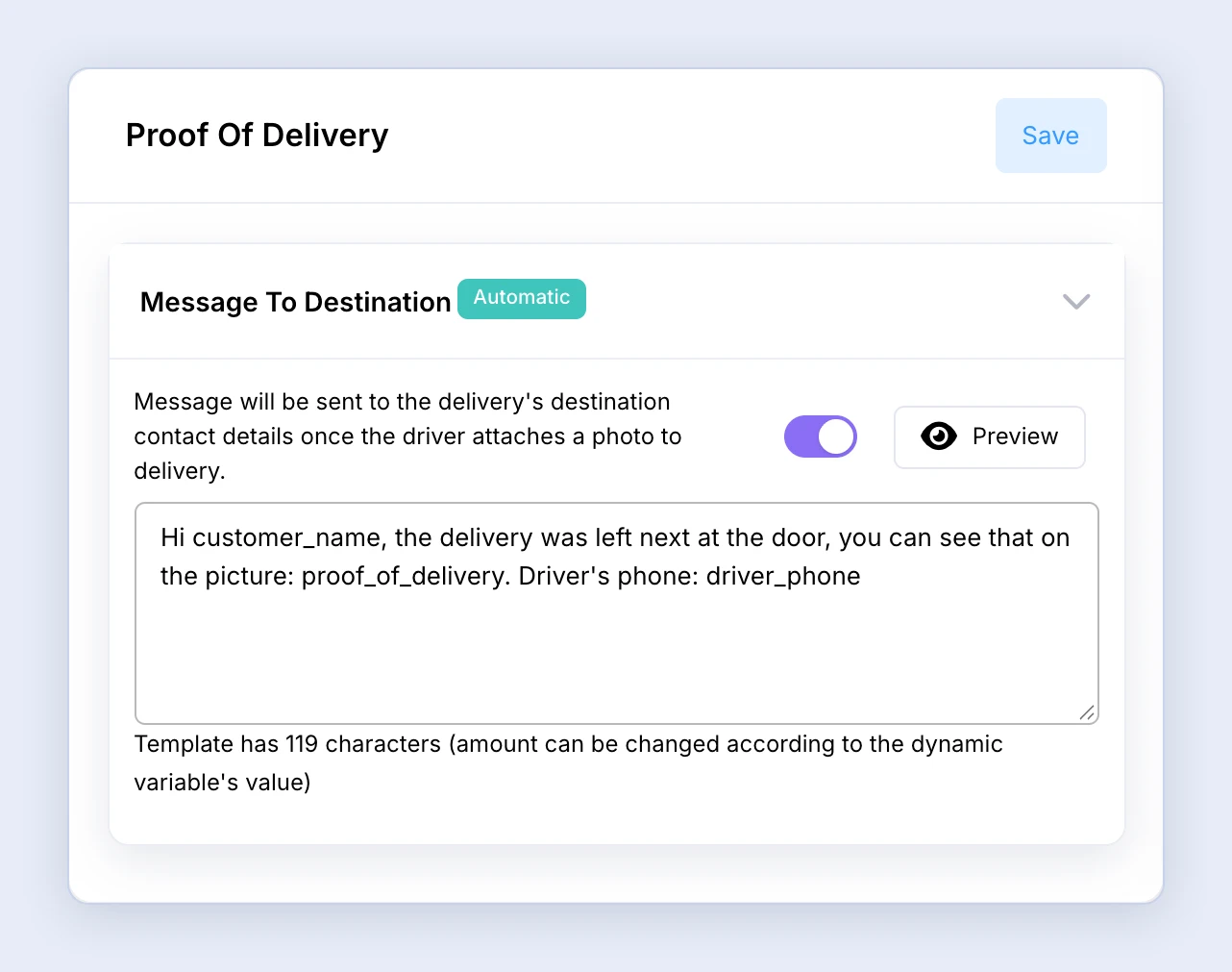
On the SMS page, under the Settings tab, choose Proof of Delivery in the list, turn on Message To Destination and click Save. The message goes to the recipient when the driver attaches a photo to the delivery. The same option is in the WhatsApp message settings.
Proof-of-delivery variables for any message
You can add these variables to any message template:
- proof_of_delivery: a link to the photo attached as proof of delivery.
- delivery_report_link: a link to the delivery report.
- receiver_name: the name of the person who signed at delivery.