Picking App
Warehouse pickers count the items of each order assigned to them on their phone, and the picking status updates in LionWheel.
Updated
The picking app is for warehouse staff. Each picker signs in on their phone, sees the orders assigned to them, counts the units they picked of every item, and saves. The delivery’s picking status updates in LionWheel from the count.
Note: The picking app is part of the Picking module. If the module isn’t on in your account, contact support to turn it on. For picking statuses and picking from LionWheel itself, see the picking guide.
Set up a picker
- In the menu, go to Settings => Pickers and click New picker.
- Enter the picker’s name and phone number, make sure Active is checked, and click Save.
- In the pickers list, click Create login in the picker’s row.
- Check the username and phone number, and click Create login.
The picker gets an SMS with a link to set their password. Once they set it, they can sign in to the app with their username.
Note: An inactive picker can’t sign in to the app. To block a picker’s access, click their name in the pickers list, uncheck Active, and save.
Assign deliveries to a picker
- On the Deliveries page, select the deliveries the picker should pick and click Edit.
- Click More options, and in Picker assignment choose the picker.
- Click Update.
The deliveries show up in the picker’s app. To take them back, choose Remove picker in the same field.
To see which picker each delivery is assigned to, add the Picker column to the deliveries table. The picker is also shown on the delivery page.
Sign in to the app
The picker opens the LionWheel sign-in page in their phone’s browser and signs in with their username and password. The picking app opens right away, with the organization’s name and the picker’s name at the top. When they’re done, they tap Log out.
Pick lists
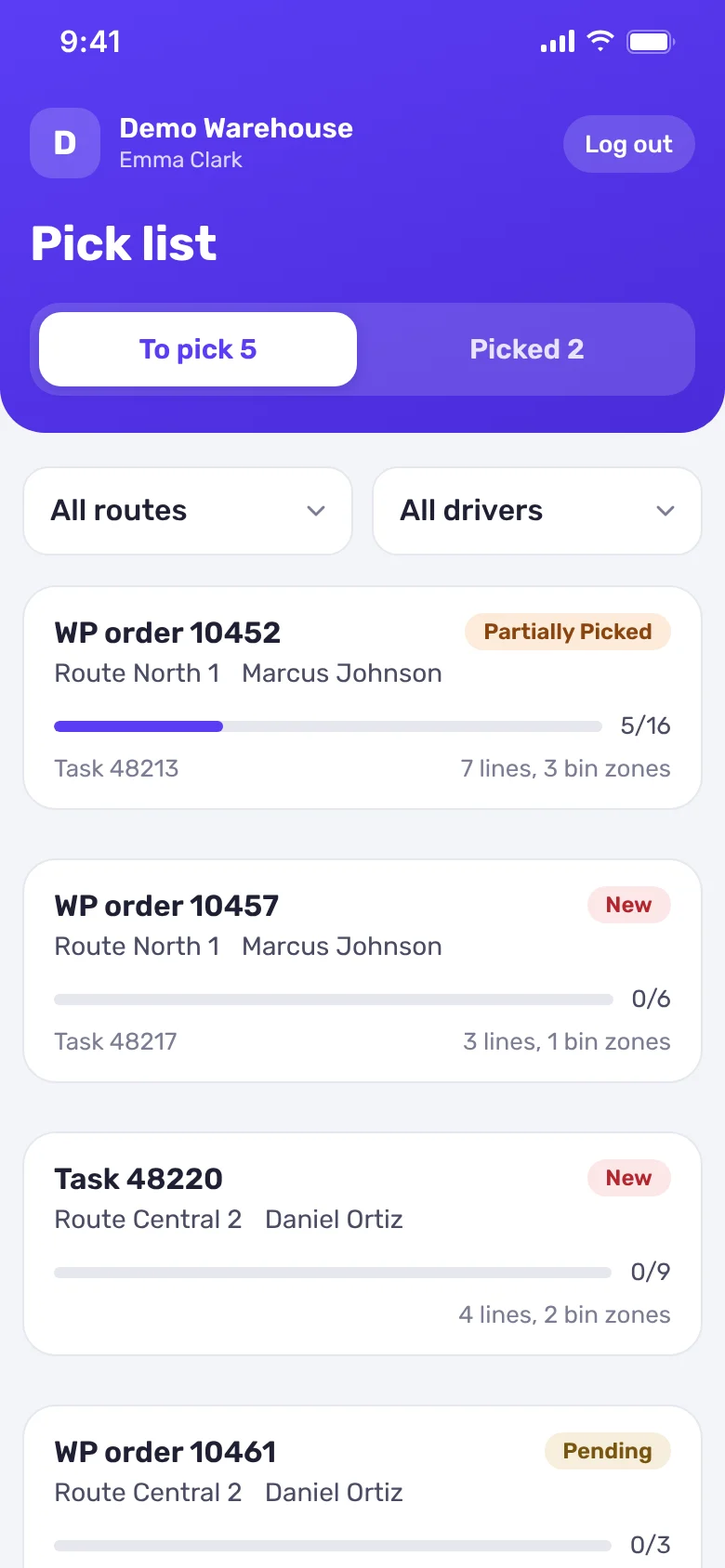
The main screen has two tabs:
- To pick: deliveries that aren’t fully picked yet, with picking status New, Pending or Partially Picked. Deliveries that were completed, canceled or failed don’t show here.
- Picked: picked deliveries, latest first.
Each card shows the order number, the picking status, the route and driver, how many units were picked out of the total, and how many lines and bin zones the order has. The bin zone is the first part of the item’s bin, for example bin A-12-03 is in zone A.
At the top of the screen, filter by route and by driver, for example to pick the deliveries of the first route out before the others. The list refreshes by itself every minute.
Pick an order
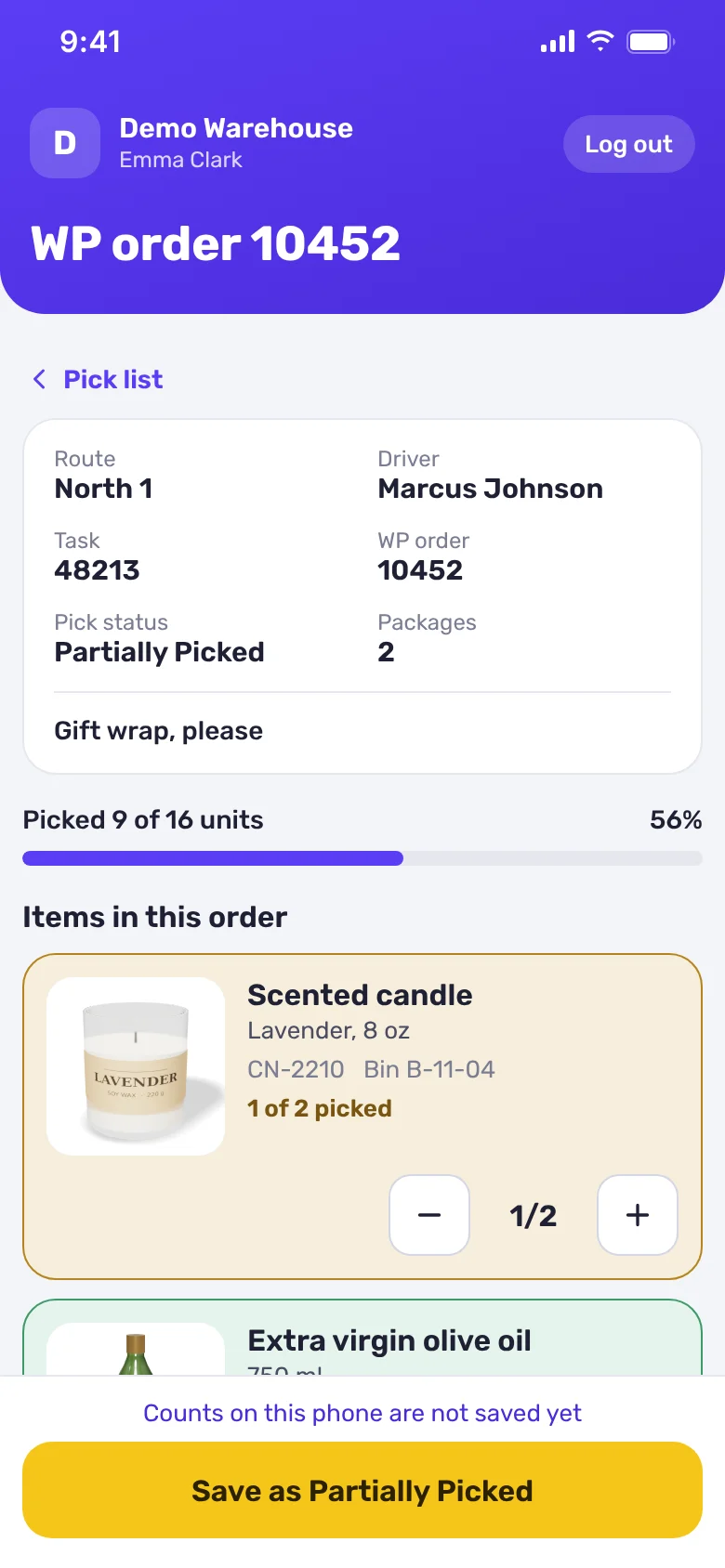
- Tap a card to open the order. The top of the screen shows the route, the driver, the task number, the order number, the picking status, the number of packages, and the delivery notes.
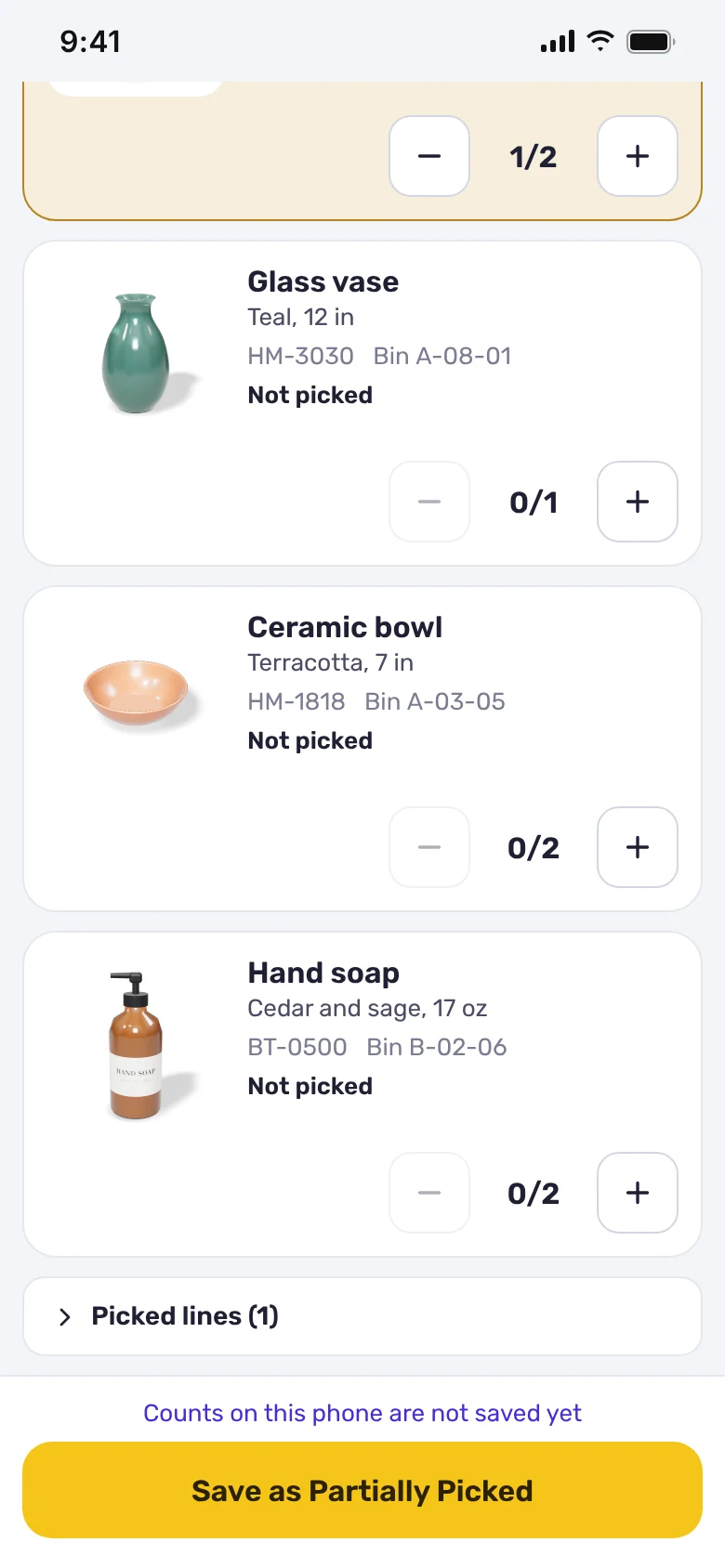
- Each line shows the item’s photo, name, variant, SKU and bin. After picking units of an item, set the count with the plus and minus buttons. A line turns green when all its units are picked, and yellow when only some are.
- Tap the save button at the bottom of the screen. It shows the status the delivery will get: Save as Picked when every unit is picked, or Save as Partially Picked when units are missing.
After saving, the delivery’s picking status updates in LionWheel. A picked delivery moves to the Picked tab and can’t be changed from the app. Changes to it are made in LionWheel.
Lines that were already fully picked when the order was opened are grouped at the bottom, under Picked lines. Tap the heading to open them.
Note: The count is kept on the phone until you save, so it isn’t lost if the screen locks or the page reloads. An order with an unsaved count is marked Not saved, and so is every line whose count changed. Until you save, the count doesn’t update LionWheel.
Item photos
Each line’s photo comes from the order. When the order has no photo for an item, the app shows the photo of the product with the same SKU in your Products catalog.