Sales Agent App
Sales agents follow their clients' deliveries on their phone: who the driver is, what was delivered, what is on the way, and proof of delivery.
Updated
On this page
The agent app is for your sales agents. Each agent signs in on their phone and sees the deliveries of the clients assigned to them: which driver carries each delivery, what was already delivered and what is still on the way, and the proof of delivery of each one. That way an agent can answer their client without calling the office.
Note: The agent app is part of the Agents module. If the module isn’t on in your account, contact support to turn it on.
Set up an agent
- In the menu, go to Settings => Agents and click New Agent.
- Enter the name, email and phone, make sure Active is checked, and click Save.
- In the agents list, click Create login in the agent’s row.
- Check the username, mobile phone and email, and click Create login.
The agent gets an SMS with their username, password and a sign-in link. If you entered an email, the details are emailed too.
Note: An inactive agent can’t sign in to the app. To block an agent’s access, click their name in the agents list, uncheck Active, and save.
Assign clients to an agent
An agent sees only the deliveries of the clients assigned to them. To assign a client, go to Companies, open the client, choose the agent in the Agent field, and save.
Sign in to the app
The agent opens the link from the message, or the LionWheel sign-in page, in their phone’s browser and signs in with their username and password. The app opens on today’s deliveries. The bar at the bottom switches between Deliveries and Clients, and Log out signs out.
Deliveries
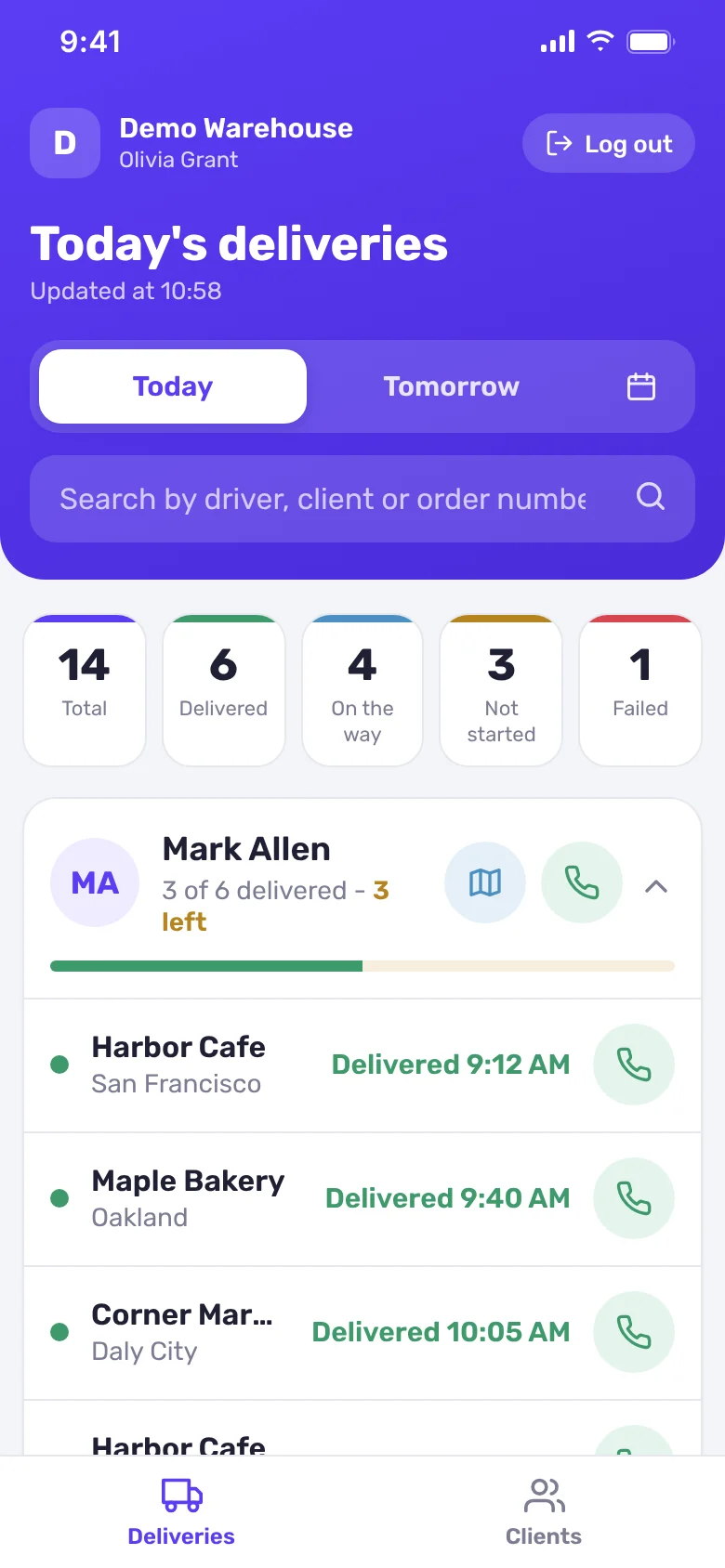
- Today and tomorrow: the top of the screen switches between today’s deliveries and the next workday’s. When the next workday isn’t tomorrow, for example after a weekend, the tab is named after the day. The calendar button picks any other date.
- Summary: under the title, the total number of deliveries, and how many were delivered, are on the way, haven’t started and failed.
- Drivers: deliveries are grouped by driver, with their progress: how many were delivered out of how many, how many are left and how many failed. Tap a driver’s card to open or close their deliveries. Deliveries that aren’t on a driver yet are at the end, under Not assigned yet.
- Calls: the driver’s card has a button to call the driver, and each delivery has a button to call the client.
- Map: the map button on a driver’s card shows their deliveries on a map. On the current day, while the driver still has open deliveries of your clients, the map also shows where the driver is right now.
- Search: search by driver or client name. Searching an order number (at least 3 characters) finds the order on any date, not only on the day shown.
The screen refreshes by itself every minute, and the time of the last update is under the title.
Each delivery ends with its status, for example:
| Status | Description |
|---|---|
| Delivered 9:40 AM | The delivery was made, with the time it was delivered |
| ETA 11:20 AM | The driver is on the way, with the estimated arrival time |
| Not started | Planned for today, and the driver hasn’t set out yet |
| Planned | A delivery on a future day |
| Not delivered | A delivery from a past day that wasn’t delivered |
| Failed 10:50 AM | The delivery failed, with the time it failed |
| No driver | The delivery isn’t on a driver yet |
Delivery details
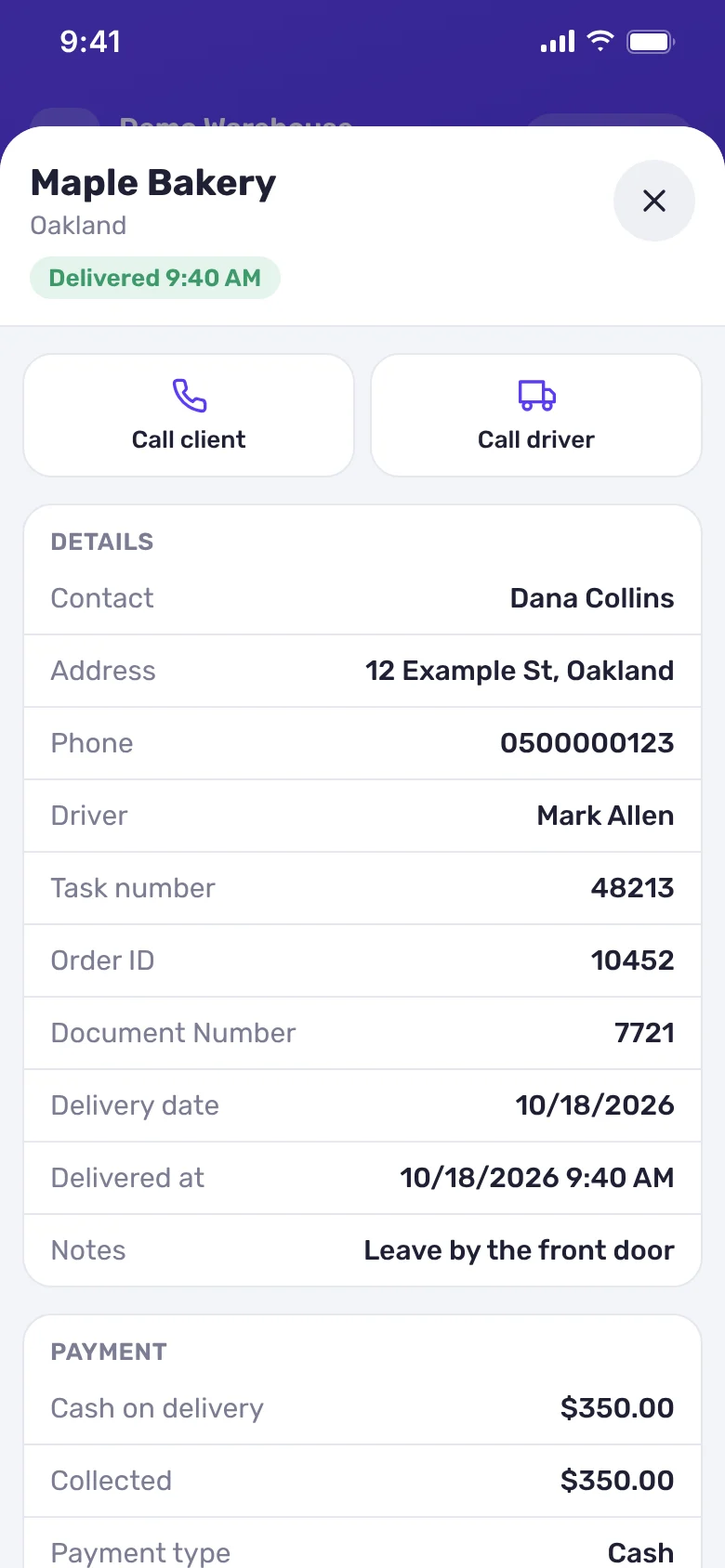
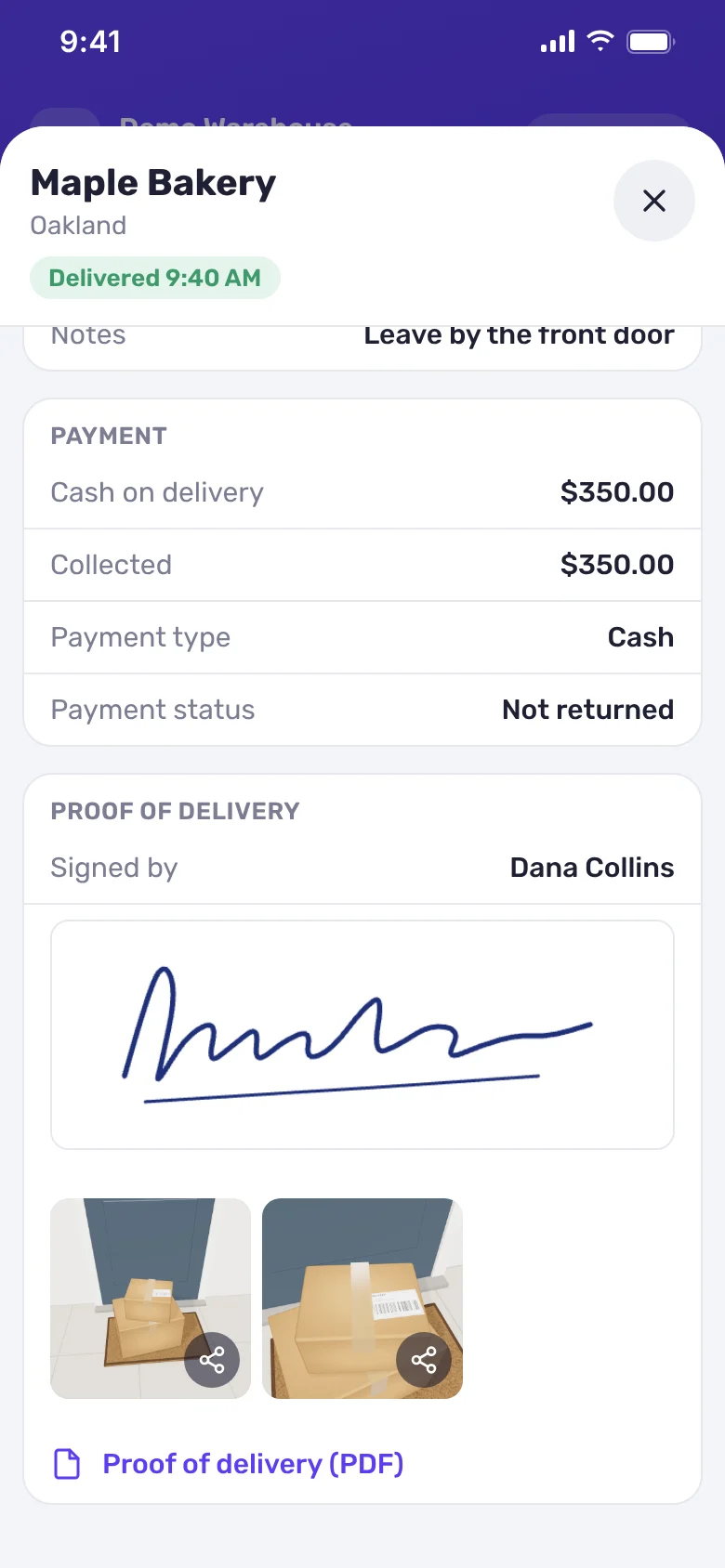
Tap a delivery to open its details:
- Calls: buttons to call the client and the driver.
- Details: the contact, address, phone, driver, task number, order ID and document number, delivery date, notes, and depending on the delivery: when it was delivered, the estimated arrival, or when it failed and why.
- Payment: cash on delivery (the amount, how much was collected, the payment type and payment status), and the total payment and payment method, when the delivery has them.
- Proof of delivery: who signed, the signature, the delivery photos, signed delivery documents, and the proof of delivery as a PDF.
Tap a photo to open it full screen and move between the photos. The share button on a photo opens the phone’s share options, for example WhatsApp, to send the client a link to the photo. In a browser without sharing, the link is copied instead.
My clients
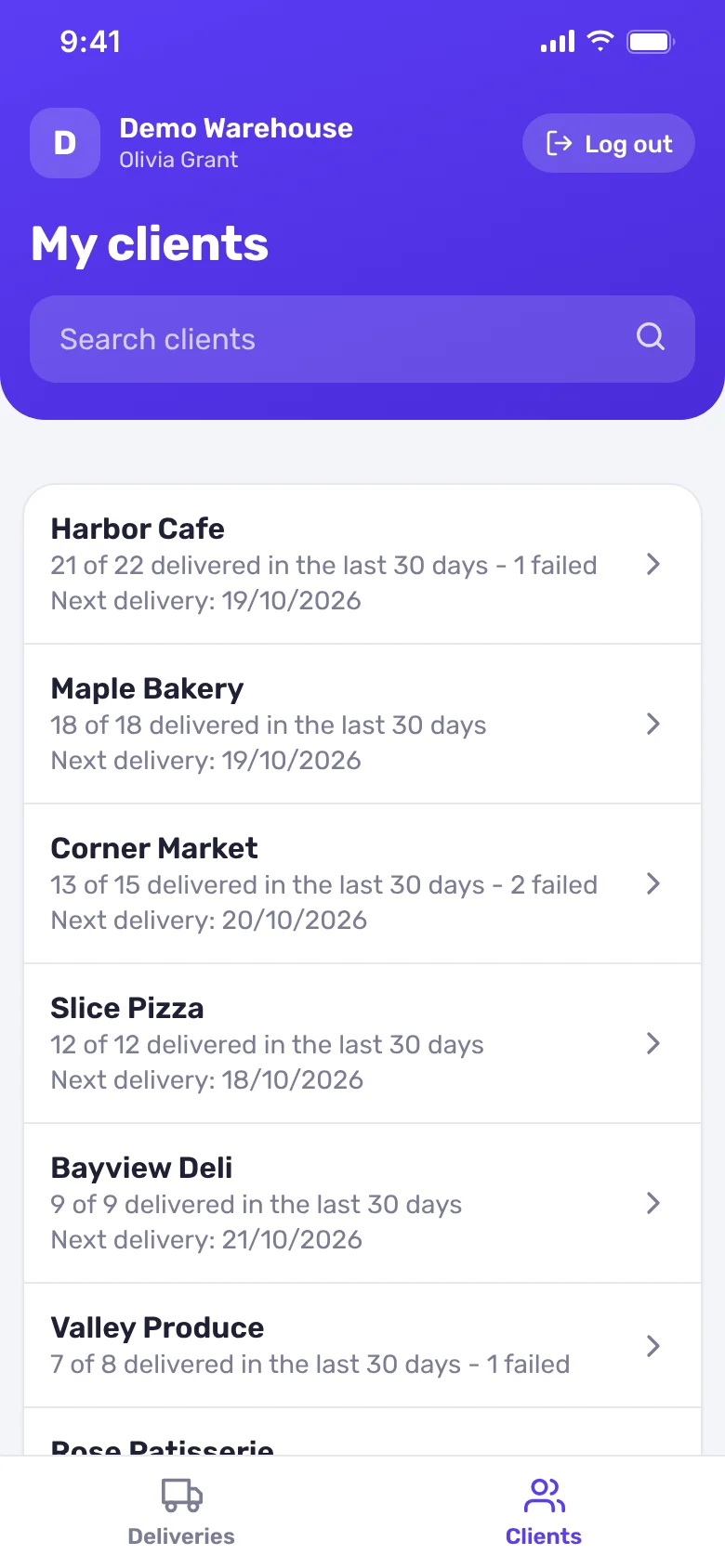
The Clients screen lists every client assigned to the agent. Each client shows how many deliveries were delivered out of how many in the last 30 days, how many failed, and when their next delivery is. Search a client by name.
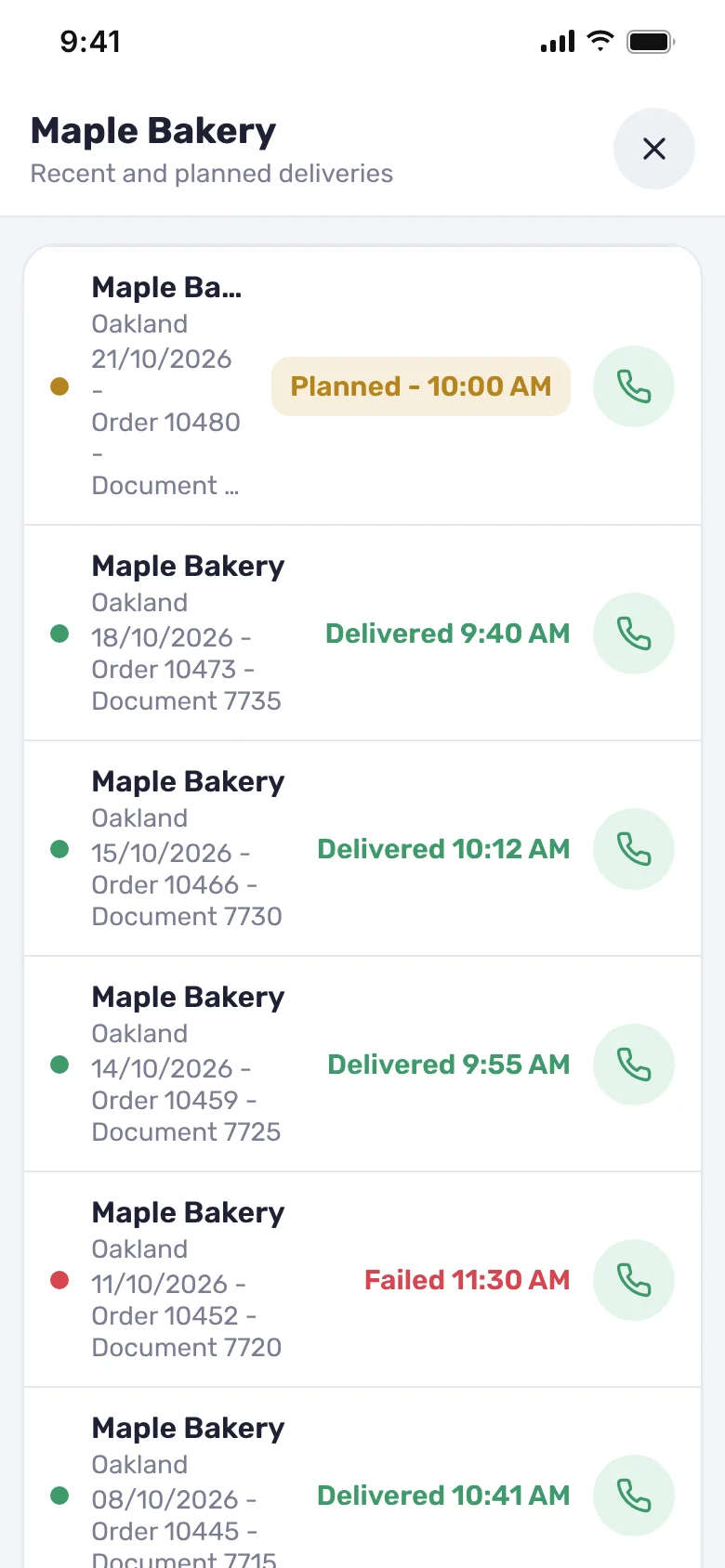
Tap a client to open their delivery history: planned deliveries and the last year’s deliveries, newest first, with the date, order number and document number. Tap Show more to load older deliveries, and tap a delivery to open its details.