Recurring Deliveries
Set up recurring deliveries that the system creates automatically on fixed delivery days, and view, edit or delete them.
Updated
Unlike fixed routes (which consist of predefined stops), Scheduled Deliveries function as recurring orders with fixed distribution schedules. The system allows you to change the delivery days, the number of parcels and the price, and edit the customer and destination details at any time.
Go to Settings => Recurring Deliveries. On this page, you can view your active Recurring deliveries, edit them, or delete them.
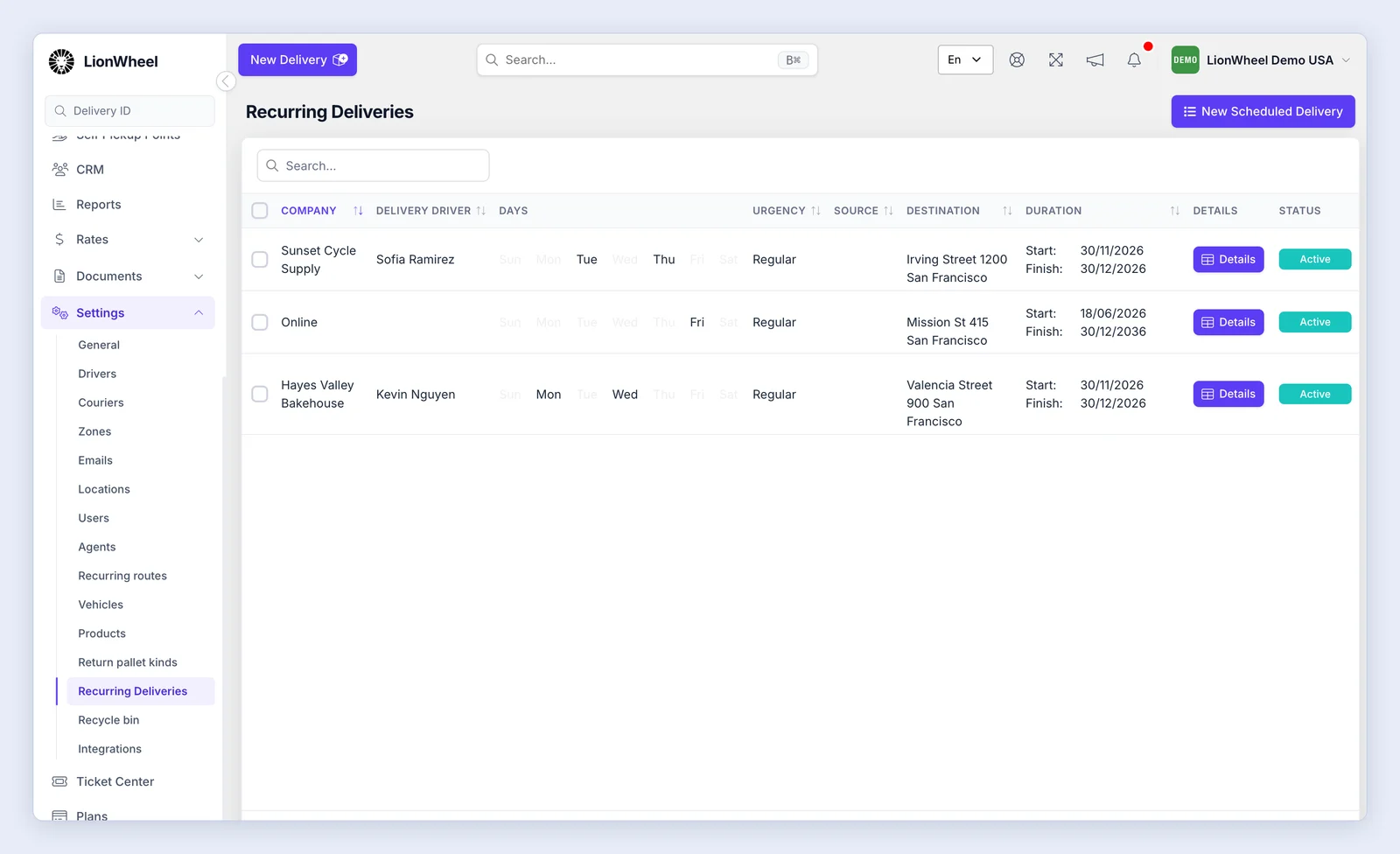
Creating a New Scheduled Delivery
- Click the “New Scheduled Delivery” button in the top right corner. A window opens.
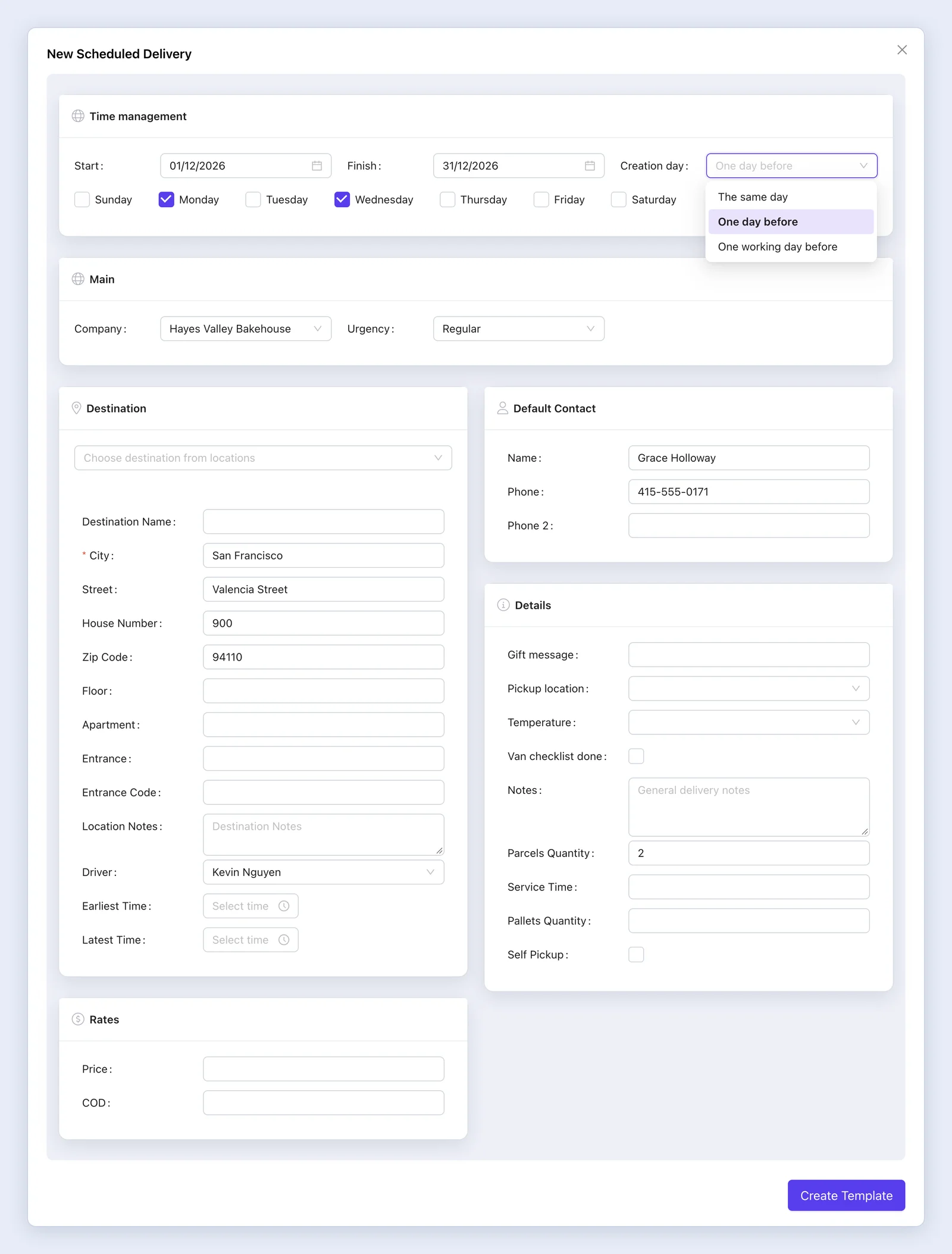
- Set the delivery days, the start and finish dates and the creation day, choose the company, and fill in the destination address, the default contact, the driver, the price, the number of parcels and more.
- Click “Create Template”.
Under the Time management section, select the delivery days and choose when the system should automatically generate the order using the Creation day dropdown:
- The same day: Created at midnight (00:00) on the delivery day.
Example: A Monday delivery will be created at midnight between Sunday and Monday. - One day before: Created at midnight (00:00) the day before.
Example: A Monday delivery will be created at midnight between Saturday and Sunday. - One working day before: Created at midnight (00:00) on the previous business day.
Example: A Thursday delivery will be created at midnight between Tuesday and Wednesday.
Editing and Viewing Delivery Details
To view or update a Recurring delivery, click the Details button to open its dedicated page. The page shows the template details and the past deliveries created from it.
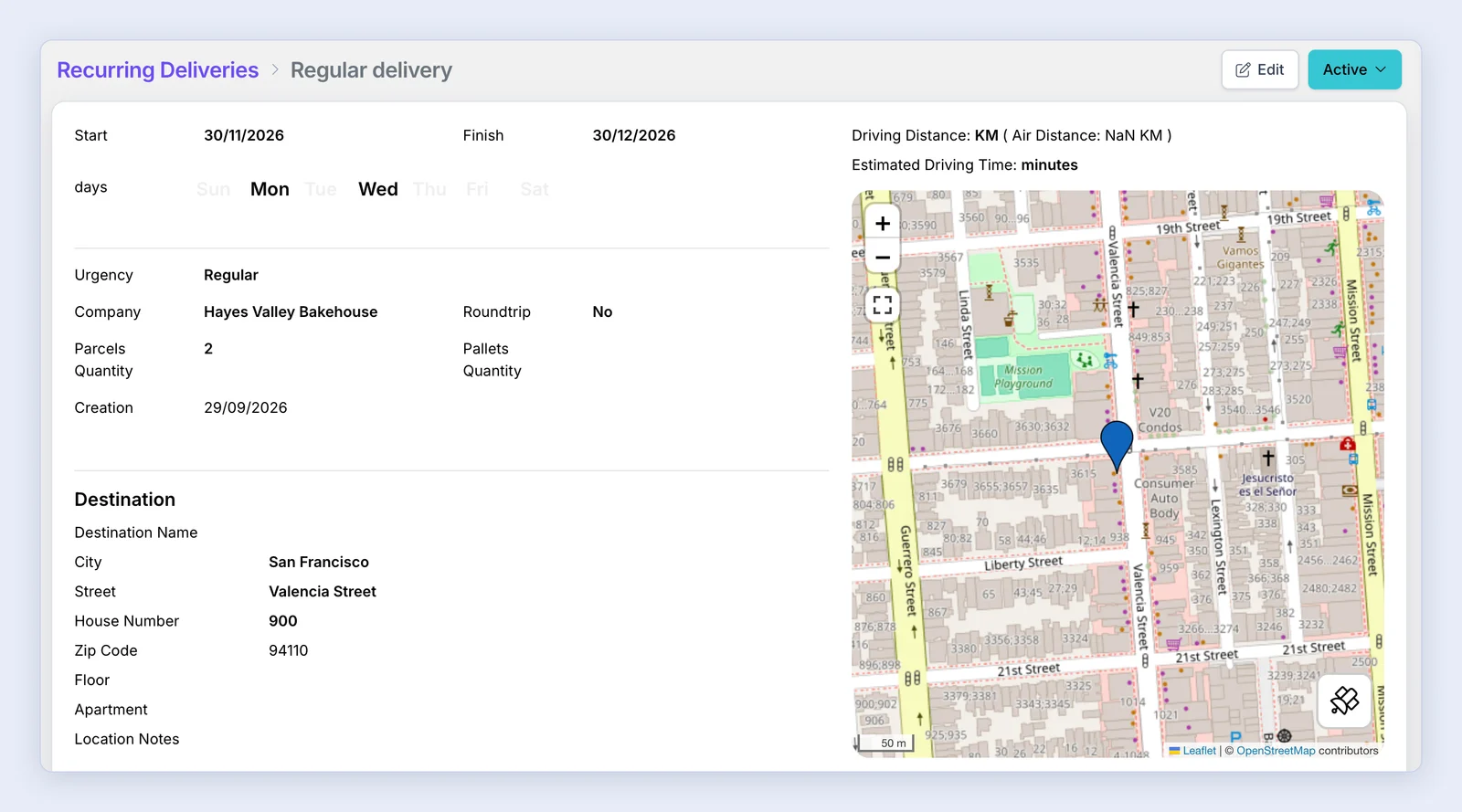
Click the Edit button on the recurring delivery page to modify the delivery information or assign/change the driver, then click Update. Use the status button (Active) to set the recurring delivery to Inactive.