- 1. Introduction
- 2. Creating Deliveries
- 3. LionWheel Delivery Management Guide
- 4. Plan Drivers Routes
- 5. Import deliveries from Excel
- 6. Status Descriptions
- 7. Settings
- 8. Edit Geolocation
- 9. Logging in and resetting a password
Logging in and resetting a password
How to log in to LionWheel, what to do when you forget your password or the reset email doesn't arrive, and how to reset passwords for your team, drivers and business customers.
Updated
On this page
Everyone who works with LionWheel logs in with a username and password: your team, your drivers and your business customers. How to reset a password depends on who is logging in, and this guide covers each case.
Logging in
- Open the LionWheel login page.
- Enter your Username and Password.
- Click Login.
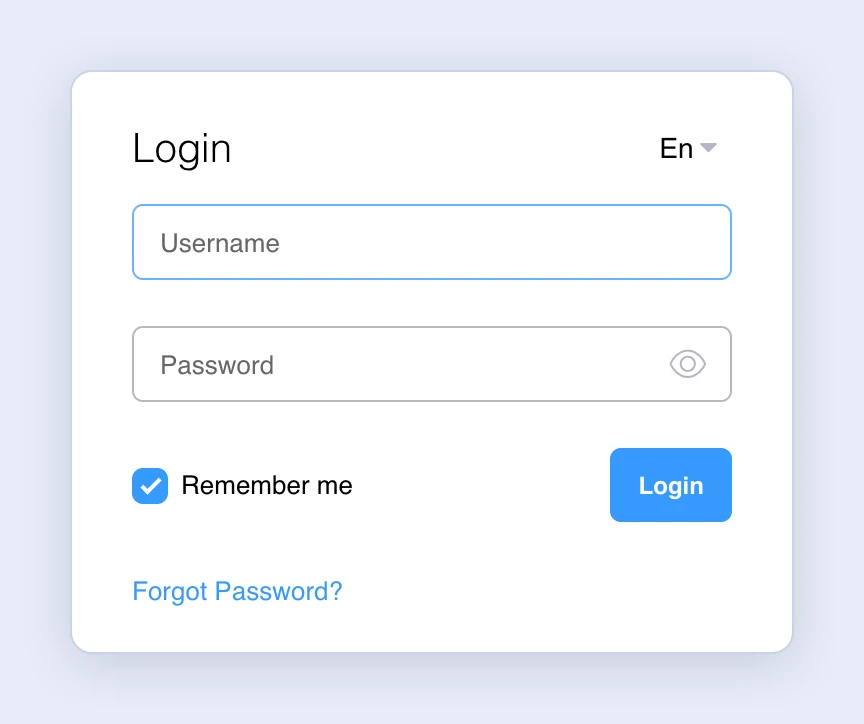
You log in with your username as it was set up in the system, which isn’t necessarily your email address. If a message says the username or password is invalid, check your username (see where to find it below) or reset your password.
If a message says your account is inactive, your user has been deactivated. Team members should contact their account admin, and business customers their delivery company.
Drivers log in to the driver app, not on this page (see below).
Forgot your password
- On the login page, click Forgot Password?.
- Enter your username and click Send.
- Open the email from LionWheel, sent from do-not-reply@lionwheel.com. It also shows your username. Click Reset Password.
- Enter a New Password and Confirm Password, or click Generate strong password and keep the password it creates.
- Click Update Password.
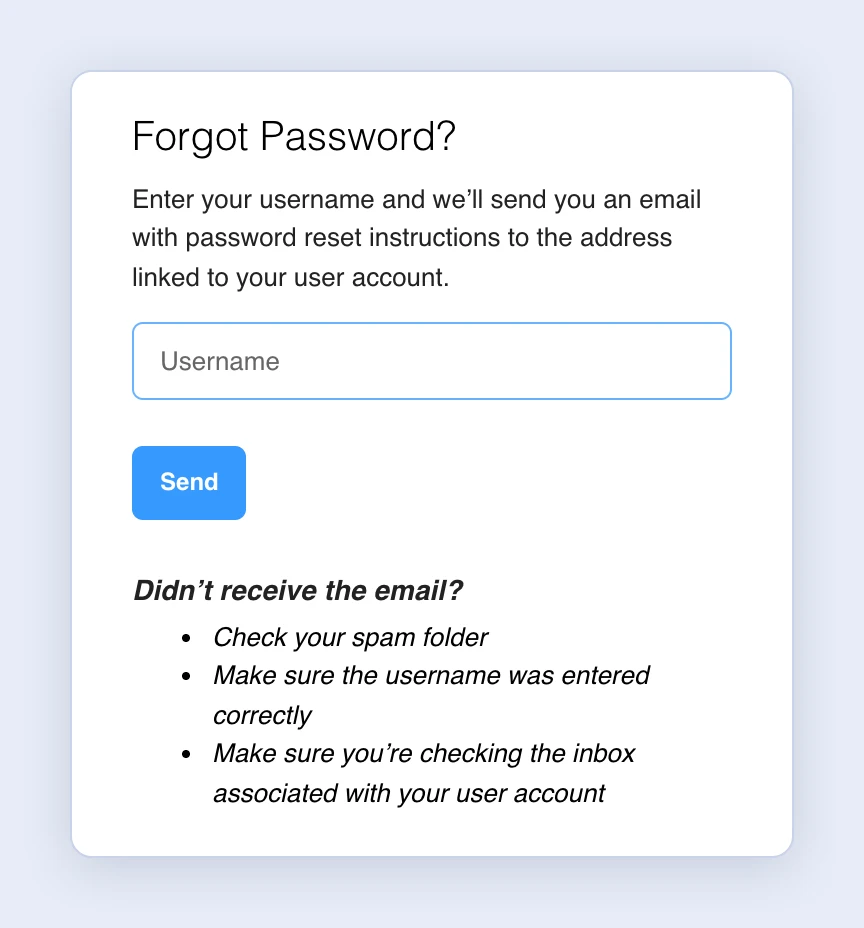
The password needs at least 8 characters, with an uppercase letter, a lowercase letter and a number, and it can’t be the same as your current password.
Note: The link in the email works for 6 hours, and only the latest link you were sent works. If a message says the reset link has expired or is invalid, ask for a new email and use the link in it.
The email didn’t arrive
- Check your spam folder.
- Make sure the username is right. The message saying the email is on its way appears even when the username is wrong, and then no email is sent.
- The email goes to the address set on your user, which may not be the inbox you’re checking.
- A user with no email address, or an inactive user, doesn’t get an email. Contact your account admin, or your delivery company if you’re a business customer.
Changing your password
When you’re logged in, you can change your password yourself:
- Click your business name at the top of the screen and choose Change Password.
- Enter your Current Password, a New Password and Confirm New Password.
- Click Save.
Resetting a password for your team
The account admin can send any team member a password reset email:
- Go to Settings => Users.
- In the user’s row, click Reset Password.
- Confirm in the window that opens. The email goes to the user’s address, and they continue from it as in steps 3 to 5 of “Forgot your password”.
If a message says the user’s email is not set, click the username, add an email address and save, then send it again.
Drivers
Drivers log in to the driver app with the username and password they got by SMS when they were added. The web system isn’t open to drivers.
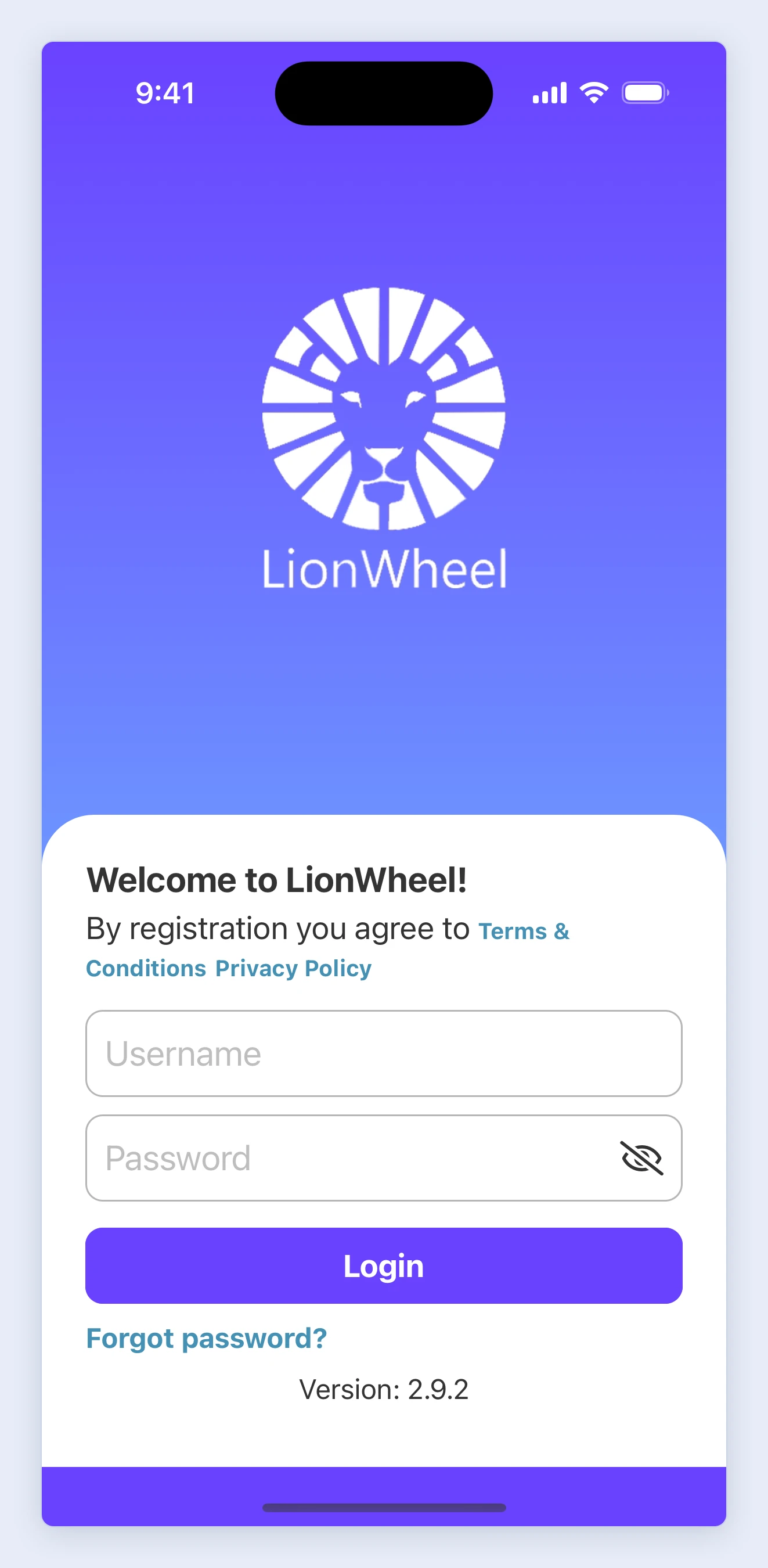
When a driver forgets their password, there are three options:
- Log in with a QR code, no password needed: in Settings => Drivers, click Connect in the driver’s row. The driver scans the code and is logged in to the app. From the same window you can also send the driver a login link by SMS or WhatsApp. The code and the link work for 60 minutes (QR code login guide).
- Reset the password from the Drivers page: LionWheel creates a new password and sends it to the driver by SMS (steps below).
- From the app: the driver taps Forgot password? on the login screen, enters an email address and gets a reset link there. This works only if the driver’s details include an email address.
To reset a driver’s password:
- Go to Settings => Drivers.
- In the driver’s row, click the three dots in the Actions column and choose Reset Password.
- Confirm in the window that opens. It shows the phone number the SMS will go to.
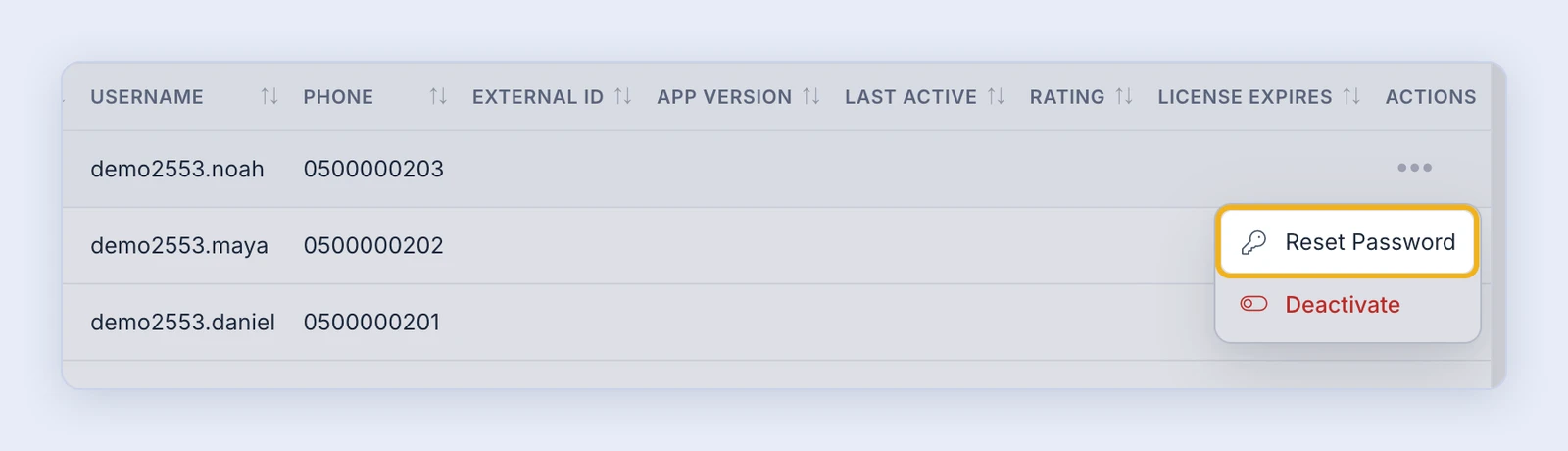
The driver gets an SMS with their username, the new password and a link to download the app.
Note: After the reset, the driver is logged out of the app and logs in again with the new password. Only admin users see Reset Password.
Business customers
If you’re a business customer of a delivery company, the delivery company opened your user and manages it. Forgot your password? Click Forgot Password? on the login page, or contact your delivery company.
Are you the delivery company? To reset a password for a customer:
- Go to Companies and open the customer.
- In the Users tab, click the three dots in the user’s row.
- Choose Reset Password to send them a reset email, or Change Password to set a new password for them yourself.
Where to find your username
- In the welcome email you got when your user was created. Drivers get their username by SMS.
- In the password reset email.
- When you’re logged in: click your business name at the top of the screen. Your username appears at the top of the menu.
- From your account admin: team usernames are in Settings => Users, driver usernames in the Username column in Settings => Drivers, and business customer usernames in the Users tab on the customer’s page.